> ## Documentation Index
> Fetch the complete documentation index at: https://docs.ollim.ai/llms.txt
> Use this file to discover all available pages before exploring further.
# Quickstart
> Install ollim-bot, create a Discord bot, and start chatting — 7 steps.
Get ollim-bot running and send your first message in 7 steps.
## Before you start
You need:
* **A computer** running macOS, Windows, or Linux
* **A Discord account** — [create a Discord account](https://discord.com/register) if you don't have one
* **A Claude subscription** — Pro (20 USD/month) or Max (100 USD/month) at [Claude](https://claude.ai). Pro works fine to start. **Not required if self-hosting** — see [self-hosted models](/self-hosting/model-providers#self-hosted-models) to run with a local model instead
ollim-bot is a single-user bot designed to run as a personal assistant
in Discord DMs. No server is required.
## Open a terminal
You'll paste commands into a terminal throughout this guide. Open one now:
Press **Cmd + Space**, type **Terminal**, and press **Enter**.
Press the **Windows key**, type **PowerShell**, and click **Windows PowerShell**.
Press **Ctrl + Alt + T**.
A window with a blinking cursor appears — this is where you'll paste
commands from this guide. To run a command, paste it in and press
**Enter**.
ollim-bot needs two tools: **Git** (downloads code) and **uv**
(manages Python, the language the bot is written in).
#### Install Git
Git is pre-installed on macOS. Verify by pasting this and pressing **Enter**:
```bash theme={null}
git --version
```
You should see something like `git version 2.39.0`. If you see
"command not found", download Git from
[git-scm.com](https://git-scm.com/), run the installer, then
run `git --version` again to confirm.
Download the installer from [git-scm.com](https://git-scm.com/)
and run it. Use all the default options.
After it finishes, **close PowerShell and open it again** so it
can find Git. Then verify:
```powershell theme={null}
git --version
```
You should see something like `git version 2.44.0.windows.1`.
```bash theme={null}
sudo apt install git
```
On Fedora, use `sudo dnf install git` instead.
#### Install uv
```bash theme={null}
curl -LsSf https://astral.sh/uv/install.sh | sh
```
```powershell theme={null}
powershell -ExecutionPolicy ByPass -c "irm https://astral.sh/uv/install.ps1 | iex"
```
Prefer to inspect the script first? On Linux or macOS, download it,
review it, then run it:
```bash theme={null}
curl -LsSf https://astral.sh/uv/install.sh -o /tmp/uv-install.sh
less /tmp/uv-install.sh
sh /tmp/uv-install.sh
```
You can also install uv via `pip install uv` or your system package manager.
After uv installs, **close your terminal** so your PATH updates.
The next step is in the browser, so you won't need it yet.
Open the [Discord Developer Portal](https://discord.com/developers/applications)
in your browser and click **New Application**. Give it any name
(e.g. "ollim-bot").
 In the left sidebar, click **Bot**. Then click **Reset Token** (or
**Add Bot** if you see that instead) and copy the token that
appears.
In the left sidebar, click **Bot**. Then click **Reset Token** (or
**Add Bot** if you see that instead) and copy the token that
appears.
 The bot token is shown only once. If you lose it, click **Reset Token** again to get a new one.
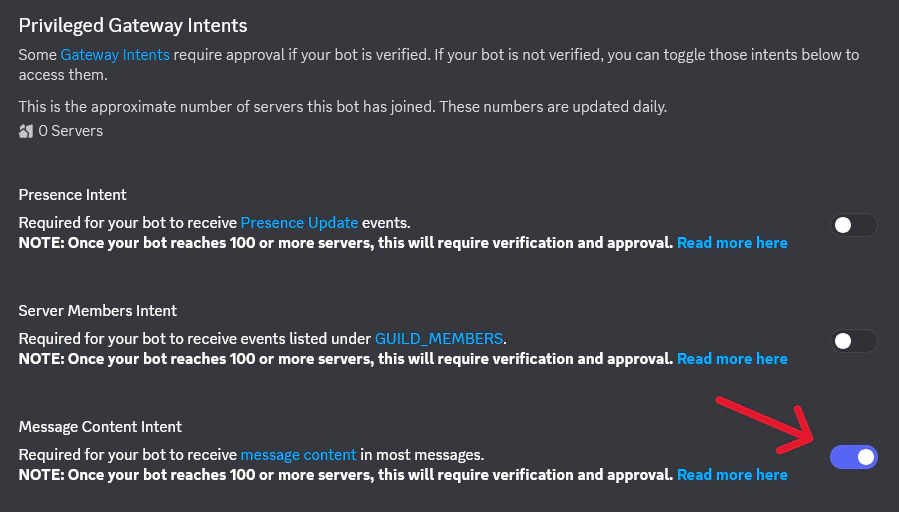
Scroll down to **Privileged Gateway Intents** and
turn on **Message Content Intent** (this lets the bot read your
messages).
The bot token is shown only once. If you lose it, click **Reset Token** again to get a new one.
Scroll down to **Privileged Gateway Intents** and
turn on **Message Content Intent** (this lets the bot read your
messages).
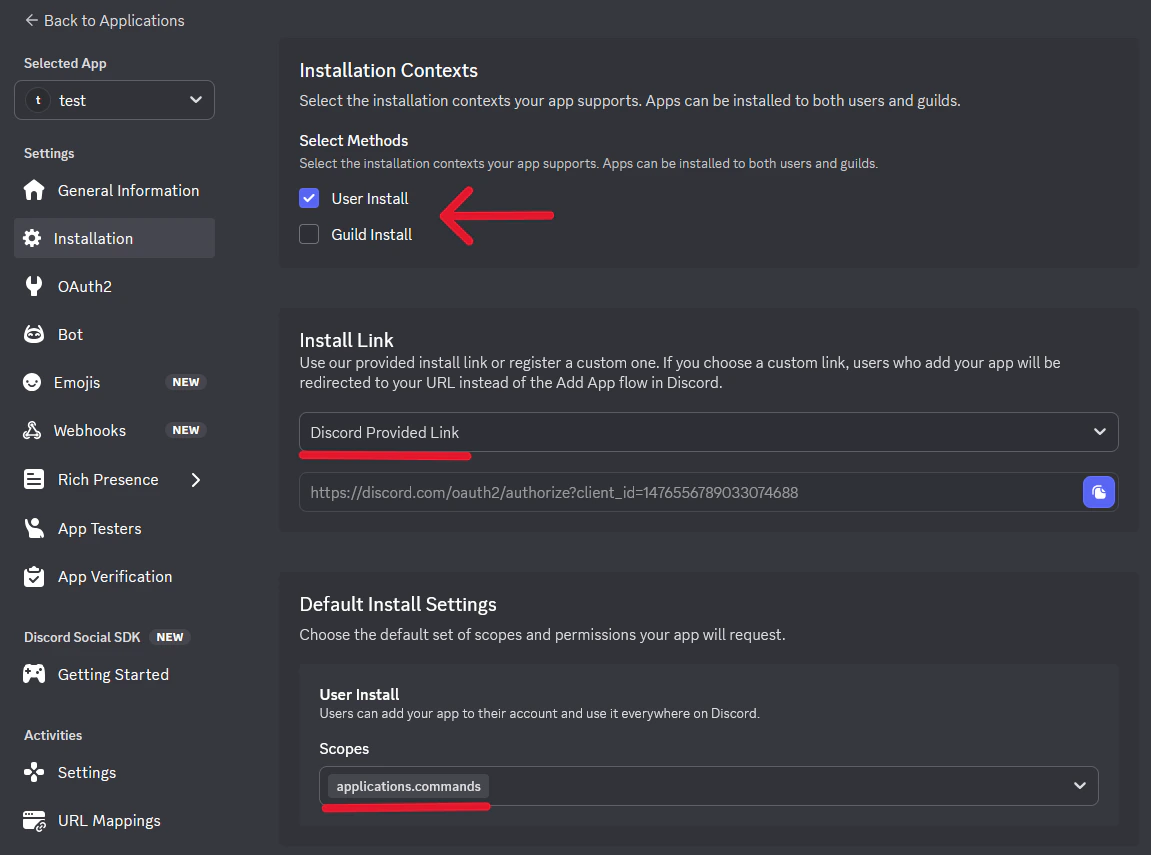
 Click **Installation** in the left sidebar.
Under **Installation Contexts**, check **User Install** and uncheck
**Guild Install**. Verify the install link dropdown is set to
**Discord Provided Link** (the default for new apps). Under
**Default Install Settings**, verify that `applications.commands`
is listed in the scopes — Discord adds it by default. If either
is missing, set them manually. Then click **Save Changes** at the
bottom.
Click **Installation** in the left sidebar.
Under **Installation Contexts**, check **User Install** and uncheck
**Guild Install**. Verify the install link dropdown is set to
**Discord Provided Link** (the default for new apps). Under
**Default Install Settings**, verify that `applications.commands`
is listed in the scopes — Discord adds it by default. If either
is missing, set them manually. Then click **Save Changes** at the
bottom.
 Copy the **Install Link** shown on this page and open it in your
browser. Click **Authorize** to install the bot to your Discord
account.
Finally, go back to **Bot** in the left sidebar and uncheck **Public
Bot**.
Copy the **Install Link** shown on this page and open it in your
browser. Click **Authorize** to install the bot to your Discord
account.
Finally, go back to **Bot** in the left sidebar and uncheck **Public
Bot**.
 You must set the install link and install the app *before* unchecking
**Public Bot**. Discord does not allow private apps to have an
install link, so doing these out of order causes an error.
Verify uv is working:
```bash theme={null}
uv --version
```
You should see a version number like `uv 0.6.0`. If you see
"command not found", close the terminal, open a new one, and run
`uv --version` again. If it still fails, see
[troubleshooting](/development/troubleshooting).
Download the bot's code:
```bash theme={null}
git clone https://github.com/Ollim-AI/ollim-bot.git
```
Move into the downloaded folder:
```bash theme={null}
cd ollim-bot
```
Install the bot:
```bash theme={null}
uv tool install --editable .
```
This also installs
[`claude-history`](https://github.com/Ollim-AI/claude-history), a
tool that lets the bot search past conversations so it can remember
things.
Verify the bot installed:
```bash theme={null}
ollim-bot --help
```
You should see a list of commands starting with
`ollim-bot -- ADHD-friendly Discord assistant`. If you see "command
not found", see [troubleshooting](/development/troubleshooting).
Create the configuration file:
```bash theme={null}
cp .env.example .env
```
```powershell theme={null}
copy .env.example .env
```
Open the file in a text editor:
```bash theme={null}
open -e .env
```
This opens the file in TextEdit.
```powershell theme={null}
notepad .env
```
```bash theme={null}
nano .env
```
Use arrow keys to move around. When done editing, press
**Ctrl + O** then **Enter** to save, then **Ctrl + X** to exit.
Find these three lines and fill in the values:
```bash title=".env" theme={null}
DISCORD_TOKEN=paste-your-bot-token-here
OLLIM_USER_NAME=YourFirstName
OLLIM_BOT_NAME=Ollim
```
* Replace `paste-your-bot-token-here` with the token you copied in step 2
* Replace `YourFirstName` with your name (the bot will call you this)
* Replace `Ollim` with whatever you want to call the bot
Save the file and close the editor. On Linux or macOS, restrict the
file permissions so only you can read it:
```bash theme={null}
chmod 600 .env
```
These three env vars are all you need for a Claude subscription. On first launch, the bot's welcome message includes a **"Get started — 3 questions"** button that walks you through personality and user context interactively. You can also run `/setup` anytime.
Using a [local model](/self-hosting/model-providers#self-hosted-models) instead of Claude? Add `ANTHROPIC_BASE_URL`, `ANTHROPIC_AUTH_TOKEN`, `ANTHROPIC_MODEL`, and `ANTHROPIC_SMALL_FAST_MODEL` to your `.env` as well — see the [self-hosted models](/self-hosting/model-providers#self-hosted-models) section for values. You can skip the sign-in step in step 6.
In the same terminal, start the bot:
```bash theme={null}
ollim-bot
```
Keep this terminal window open. The bot runs as long as the terminal
is open — closing the terminal stops the bot.
If you're using a Claude subscription, the bot sends you a Discord
DM with a sign-in link on first launch. Open the link and log in
with your Anthropic account.
If you configured a [local model provider](/self-hosting/model-providers#self-hosted-models)
or set `ANTHROPIC_AUTH_TOKEN` in your `.env`, no sign-in link
appears — the bot connects directly to your inference server.
Once ready, the bot sends you a startup DM in Discord.
Bot not starting? See [common startup issues](/development/troubleshooting#startup-failures).
The bot's startup DM includes a **"Get started — 3 questions"**
button. Click it to walk through guided setup — the bot asks your
name, its personality, and context about your work and schedule.
At the end, setup offers to create a **morning check-in routine**
that messages you every weekday at 9 AM with your schedule and
priorities. If you accept, the bot writes the routine file
immediately — no extra steps needed.
Setup also checks your Google integration status and points you to
the next step if it's not connected yet. See
[Google integration](/getting-started/google-integration) for the
full walkthrough.
You can skip the button and just start talking — setup is optional.
You can always run it later with `/setup`.
Once setup is done (or skipped), try a message to see the bot in
action:
> Remind me to take out the trash tomorrow at 10am, and follow up if I haven't done it by noon
The bot creates a reminder and a follow-up chain — at noon it
checks whether you've confirmed, and only pings you if the task is
still outstanding.
After [setting up Google integration](/getting-started/google-integration), try: "What's on my calendar today?"
## CLI commands
Beyond running the bot, `ollim-bot` provides commands for managing
routines, reminders, and Google services. Run these in your terminal:
```bash theme={null}
ollim-bot routine list # Show all routines
ollim-bot reminder add --delay 30 -m "take a break"
ollim-bot tasks list # List Google Tasks
ollim-bot cal today # Show today's calendar events
ollim-bot help # Show all available commands
```
## Troubleshooting
This error appears on the **Installation** page when **Public Bot** is
already unchecked. Discord does not allow private applications to have a
default authorization link.
**Fix:** go to **Bot** in the sidebar, check **Public Bot**, then return to
**Installation** and configure the install link. After you've installed the
app to your account, go back and uncheck **Public Bot**.
Verify that **Message Content Intent** is enabled under **Bot** >
**Privileged Gateway Intents**. Without it, the bot connects but cannot
read your messages.
Slash commands sync on startup. If they don't appear:
1. Confirm you installed via **User Install** (not Guild Install) — slash
commands in DMs require user installation
2. Wait a few minutes — Discord caches command lists and may take time to
update
3. Restart Discord (Ctrl+R on desktop) to force a cache refresh
For runtime issues (startup failures, session problems, scheduling), see
[troubleshooting](/development/troubleshooting).
## Next steps
Connect Google Tasks, Calendar, and Gmail to the bot.
Understand the agent loop, sessions, and fork model.
Learn how DM conversations, context, and streaming work.
Morning briefings, task reviews, and proactive check-ins — the feature that makes the difference.
You must set the install link and install the app *before* unchecking
**Public Bot**. Discord does not allow private apps to have an
install link, so doing these out of order causes an error.
Verify uv is working:
```bash theme={null}
uv --version
```
You should see a version number like `uv 0.6.0`. If you see
"command not found", close the terminal, open a new one, and run
`uv --version` again. If it still fails, see
[troubleshooting](/development/troubleshooting).
Download the bot's code:
```bash theme={null}
git clone https://github.com/Ollim-AI/ollim-bot.git
```
Move into the downloaded folder:
```bash theme={null}
cd ollim-bot
```
Install the bot:
```bash theme={null}
uv tool install --editable .
```
This also installs
[`claude-history`](https://github.com/Ollim-AI/claude-history), a
tool that lets the bot search past conversations so it can remember
things.
Verify the bot installed:
```bash theme={null}
ollim-bot --help
```
You should see a list of commands starting with
`ollim-bot -- ADHD-friendly Discord assistant`. If you see "command
not found", see [troubleshooting](/development/troubleshooting).
Create the configuration file:
```bash theme={null}
cp .env.example .env
```
```powershell theme={null}
copy .env.example .env
```
Open the file in a text editor:
```bash theme={null}
open -e .env
```
This opens the file in TextEdit.
```powershell theme={null}
notepad .env
```
```bash theme={null}
nano .env
```
Use arrow keys to move around. When done editing, press
**Ctrl + O** then **Enter** to save, then **Ctrl + X** to exit.
Find these three lines and fill in the values:
```bash title=".env" theme={null}
DISCORD_TOKEN=paste-your-bot-token-here
OLLIM_USER_NAME=YourFirstName
OLLIM_BOT_NAME=Ollim
```
* Replace `paste-your-bot-token-here` with the token you copied in step 2
* Replace `YourFirstName` with your name (the bot will call you this)
* Replace `Ollim` with whatever you want to call the bot
Save the file and close the editor. On Linux or macOS, restrict the
file permissions so only you can read it:
```bash theme={null}
chmod 600 .env
```
These three env vars are all you need for a Claude subscription. On first launch, the bot's welcome message includes a **"Get started — 3 questions"** button that walks you through personality and user context interactively. You can also run `/setup` anytime.
Using a [local model](/self-hosting/model-providers#self-hosted-models) instead of Claude? Add `ANTHROPIC_BASE_URL`, `ANTHROPIC_AUTH_TOKEN`, `ANTHROPIC_MODEL`, and `ANTHROPIC_SMALL_FAST_MODEL` to your `.env` as well — see the [self-hosted models](/self-hosting/model-providers#self-hosted-models) section for values. You can skip the sign-in step in step 6.
In the same terminal, start the bot:
```bash theme={null}
ollim-bot
```
Keep this terminal window open. The bot runs as long as the terminal
is open — closing the terminal stops the bot.
If you're using a Claude subscription, the bot sends you a Discord
DM with a sign-in link on first launch. Open the link and log in
with your Anthropic account.
If you configured a [local model provider](/self-hosting/model-providers#self-hosted-models)
or set `ANTHROPIC_AUTH_TOKEN` in your `.env`, no sign-in link
appears — the bot connects directly to your inference server.
Once ready, the bot sends you a startup DM in Discord.
Bot not starting? See [common startup issues](/development/troubleshooting#startup-failures).
The bot's startup DM includes a **"Get started — 3 questions"**
button. Click it to walk through guided setup — the bot asks your
name, its personality, and context about your work and schedule.
At the end, setup offers to create a **morning check-in routine**
that messages you every weekday at 9 AM with your schedule and
priorities. If you accept, the bot writes the routine file
immediately — no extra steps needed.
Setup also checks your Google integration status and points you to
the next step if it's not connected yet. See
[Google integration](/getting-started/google-integration) for the
full walkthrough.
You can skip the button and just start talking — setup is optional.
You can always run it later with `/setup`.
Once setup is done (or skipped), try a message to see the bot in
action:
> Remind me to take out the trash tomorrow at 10am, and follow up if I haven't done it by noon
The bot creates a reminder and a follow-up chain — at noon it
checks whether you've confirmed, and only pings you if the task is
still outstanding.
After [setting up Google integration](/getting-started/google-integration), try: "What's on my calendar today?"
## CLI commands
Beyond running the bot, `ollim-bot` provides commands for managing
routines, reminders, and Google services. Run these in your terminal:
```bash theme={null}
ollim-bot routine list # Show all routines
ollim-bot reminder add --delay 30 -m "take a break"
ollim-bot tasks list # List Google Tasks
ollim-bot cal today # Show today's calendar events
ollim-bot help # Show all available commands
```
## Troubleshooting
This error appears on the **Installation** page when **Public Bot** is
already unchecked. Discord does not allow private applications to have a
default authorization link.
**Fix:** go to **Bot** in the sidebar, check **Public Bot**, then return to
**Installation** and configure the install link. After you've installed the
app to your account, go back and uncheck **Public Bot**.
Verify that **Message Content Intent** is enabled under **Bot** >
**Privileged Gateway Intents**. Without it, the bot connects but cannot
read your messages.
Slash commands sync on startup. If they don't appear:
1. Confirm you installed via **User Install** (not Guild Install) — slash
commands in DMs require user installation
2. Wait a few minutes — Discord caches command lists and may take time to
update
3. Restart Discord (Ctrl+R on desktop) to force a cache refresh
For runtime issues (startup failures, session problems, scheduling), see
[troubleshooting](/development/troubleshooting).
## Next steps
Connect Google Tasks, Calendar, and Gmail to the bot.
Understand the agent loop, sessions, and fork model.
Learn how DM conversations, context, and streaming work.
Morning briefings, task reviews, and proactive check-ins — the feature that makes the difference.